
 Integritas Interface
Windows HowTo
Connecting hardware
-
Plug the usb cable (If the Operating System fails to detect the device please try a different USB port and make sure the drivers () are updated.
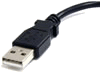 )
on any available USB port (
)
on any available USB port (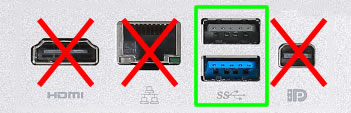 )
)
Start Application and Webportal
-
Launch the shortcut to start the application
- If already running you can just open it by selecting the icon from the taskbar.
-
The application icon will change to reflect its current state:
Disconnected and Idle
 Connected
 Disconnected and Trying to connect
- Select the big button to Open Integritas Webportal You can set the application to do this step automatically on start!
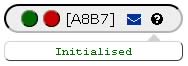
- On the Browser, navigate to a page that uses the Reader Interface and wait for it to connect. After loading, the Load Reader Button will look like this:
When the user navigates to a page that requires it, the Reader Interface will establish the necessary connection.
NOTE:
It is important to launch the browser this way because it keeps the secure connection between Browser and Hardware synchronised.
NOTE:
Multiple users can Logout and Login from the website without having to restart the application as long as they always use the same browser.
NOTE:
It is not possible to have multiple instances of the application running at the same time!
Reader Interface installation
-
Download most recent version from
HERE.
- When questioned, select Save to download file to local computer
- Do not select option Open With...
- Extract zip file to a safe folder on your computer.
- Most browsers save files to the Download folder, but this folder can get cleaned frequently!
- Common options to securely store the files are Desktop or Documents folders.
-
If you don't have any tool to extract ZIP files, get one from
7Zip
.
- Open the extracted folder and execute the file named FirstRun (.bat)
-
On some computers a warning message can pop-up saying "Windows protected your PC"
- To be able to continue, select More Info and then Run anyway.
-
This will do the initial configuration and create a Shortcut on the installation folder.
- Optionally (recommended) another shortcut can be placed on your desktop.
- Created shortcuts can be moved to anywhere on the PC for easier usage.
Reader Interface Settings
- With the application running, open Settings to customise the application behaviour:
- Browser Path
- (Optional) Path to preferred browser. If invalid, the application will try to load the system default!
-
Although it can be different for different machines, some common options are:



- Prioritise system default browser
- If possible, try to launch system default browser before any other option.
- Auto-hide after launching browser
- When user launches browser, using auto or manual mode, the application will hide itself by minimizing the window.
- Auto-launch browser on start
- Launch the browser automatically as soon as the application starts. Use this option in conjunction with the previous one for a quick Portal launching.
- Save Browser Settings
- Re-create shortcuts ( Windows only)
- Places shortcut on current/installation folder
- Places shortcut on Desktop folder